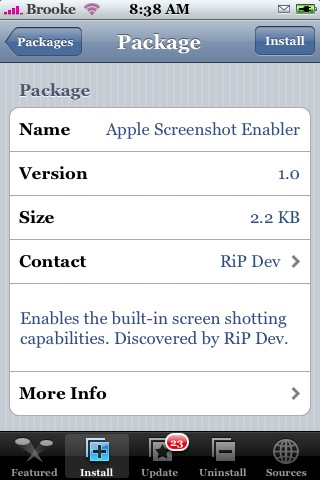
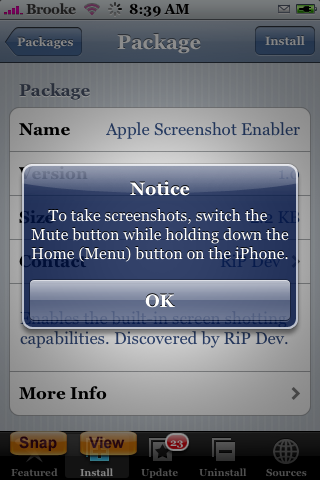
 Apple Screenshot Enabler is yet another way to take screenshots on your iPhone…and I must say it is pretty sweet. You have to be on 1.1.3 and higher for this to to work. When you go to install the app in the Installer.app you will get a pop-up telling you how to use the app (screenshot below). To take a screenshot, once you have this installed, all you do is open to the screen you would like to take a screenshot of and then hold down your Home Button and switch your vibrate button. It doesn’t matter which direction your vibrate button is, on or off, you can switch it either way and it will work. Once you do this…you will see the screen flash white and voilà…there is your screenshot. It adds the screenshot to your Camera Roll. So far this app has worked perfectly for us. It is really cool! Apple Screenshot Enabler is available through the RiP Dev source. Screenshots below.
Note: This is a code app…you will not see an icon on your SpringBoard.

 Loading...


 Loading ...
Well, this app does work for me but the picture is blurry, anyone else having this problem or know how to correct this?????
It is just me or does the quality of the screenshots I’m getting sucks?
They look kind of bad in comparison to utilities such as Capture and ScreenShot..
For some reasong captured screenshot with this util is tiff image and it’s all black except the small yellow sunbeam that bellongs to Dock utility. I’ll try removing it to see if this new utility then can make screenshots.
It works now after I uninstalled Dock utility :)
But they still remain as TIFF…a very big TIFF if you ask me (452kB for a 3″ screenshot).
The screenshots are good quality — in fact, Apple has chosen to do no compression at all, so they are actually “perfect” quality. They are 320×480 TIF files with 24 bit color depth, just like the iPhone screen itself. If you transfer them from the phone to your computer (you find them in ~/Media/DCIM/999APPLE), you can compress them as much as you want with any picture editor.
The reason why they don’t look good in Camera Roll initially is probably to do with sizing. If you leave it about 45 seconds, it gets sized to full-screen and is completely sharp.
But what’s the use of viewing screenshots of your phone on your phone? They’re made to be transferred to somewhere else, I would think.
Yes, if you wait they clear up. It takes a moment to render the image because of it’s high quality.
I guess this wouldn’t work on a Touch?
No Camera Roll and no vibrate (same as “Mute” as per the screenshot?) button..
Works great :D
That is awesome, nice find!
great idea!
This is actually built in by Apple, all this little app does is modify a setting in a .plist to enable this.
Could you please be so kind and point out the name and full path of the .plist, as well as what setting needs to be modified?
Thanks!
when uninstalled does it fix itself
hey, this one works, awesome. i’m on 1.1.3.
the only problem i have, how do you change the default image format? is it possible?
for those that see a blurry image, it’ll be blurry for a bit, but after it renders/dithers/whatever-it’s-called you’ll be able to see it in its true form. even when it was blurry, when i connected to my mac it showed up perfectly fine in iphoto, but in the .tif format.
I don’t think there is a way to change the format of the image. But, if anyone knows if there is…I would love to know about it too!
Yes, the tiff thing is annoying. I would like .png.
Love this app, works great. Pics are crystal clear. Cheers.
It worked when installed but was gone after restart. Anyone confirm? Does it depend on any other package?
Works whit the itouch????
I would like to know this too!
there must be a way, otherwise Apple couldn’t make screenshots with the itouch (assuming that Apple use this and disabled it for customers)