Firmware 7.0-7.0.6 for iPad, iPhone & iPod touch (untethered)
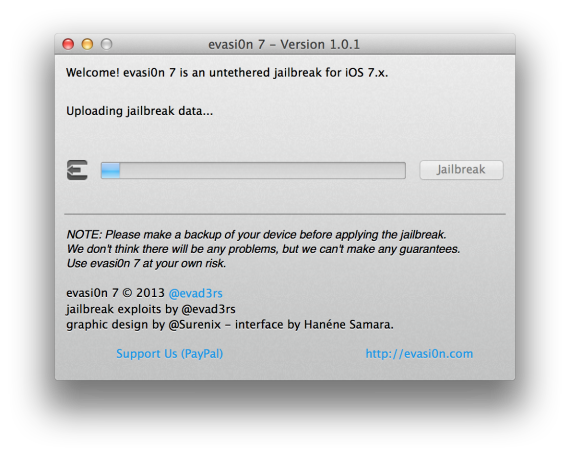
Check out our recent step-by-step guide on how to jailbreak your device here: evasi0n7 1.0.1 – Jailbreak for iOS 7 – iPhone 5 & Mac Tutorial This guide will work for all devices running firmware 7.0-7.0.6.
Firmware 6.0-6.1.2 for iPad, iPhone & iPod touch (untethered)
 You can download the Evasi0n software for your Mac or PC at evasion.com. Then watch our video tutorial on what you need to do before and during the process.
Older Firmware:
Firmware 5.1.1 for iPad, iPhone & iPod touch (untethered)
 Read our article “Absinthe 2.0 – Untethered Jailbreak for iPad, iPhone & iPod touch 5.1.1” to learn how to jailbreak your iPad, iPhone or iPad on firmware 5.1.1.
Firmware 3.1.3 for iPhones
 The Spirit jailbreak has been released. It is an untethered jailbreak for the iPad, iPhone and iPod touch. The jailbreak is available for both the PC and Mac. Here is some basic info about the jailbreak. For more information and the download links, check out Spirit’s website.
Video
Firmware 3.1.2 for iPhones
Mac (restore needed)
Create a custom firmware and use iTunes to restore using PwnageTool: http://blog.iphone-dev.org/post/211802082/pwnage-pie
Download and run redsn0w 0.9: blog.iphone-dev.org
PC or Mac (no restore needed)
Download and run blackra1n: http://blackra1n.com/
Firmware 3.0 and 3.0.1 for iPhone 2G, 3G, 3GS and iPod touch 1st and 2nd Gen.
There is now a jailbreak for all devices called redsn0w. Visit the Dev Team’s website here for the download and instructions: http://blog.iphone-dev.org
Firmware 3.0 on 3GS
George Hotz, the guy(kid) that unlocked the first iPhone and traded it for a Nissan 350Z and 3 8GB iPhones, has done it again, but this time it’s a jailbreak, not an unlock. This is for the iPhone 3GS on the 3.0 firmware using Windows or Mac. Here’s the link to download: purplera1n.com.
Firmware 2.2.1 – 2nd Gen iPod Touch
Pretty simple. Just download this file and follow this guide:
Firmware 2.2.1
First, if you are upgrading to 2.2.1, remember that it will break your unlock and does not work with yellowsn0w. Here are the updated programs to jailbreak your iPhone or 1st Gen iPod Touch. Find more details at the Dev Team’s Website.
Mac QuickPwn (recommended)
Mac PwnageTool
Windows QuickPwn
Firmware 2.2
See THIS article or read below.
To jailbreak firmware 2.2 you will need either PwnageTool or QuickPwn. They are available for both Windows and Mac.
To jailbreak using QuickPwn you just run your normal upgrade through iTunes to 2.2. Make sure you sync first. Then run QuickPwn to jailbreak and add Cydia. If you have a 3G iPhone and want to unlock it in the future you’re going to want to use PwnageTool. The new 2.2 firmware will upgrade your baseband. QuickPwn works to jailbreak all iPhones and only 1st Gen iPod Touches.
Download QuickPwn for Mac
Download QuickPwn for PC
You may also use PwnageTool to jailbreak your iPhone. PwnageTool allows you to create a custom firmware that you use to restore your iPhone. Think of it this way, QuickPwn jailbreaks an already upgraded iPhone, PwnageTool adds the jailbreak to the new Apple firmware and then you restore your iPhone using that custom firmware.
Download PwnageTool for Mac
Download PwnageTool for PC – Not Available
Both tools have their advantages. QuickPwn is quick and easy and you don’t have to restore your iPhone and start all over installing apps (except for jailbroken apps, you always have to do that over). PwnageTool is very customizable and allows you to add jailbroken apps right to the firmware so when you restore, they are already installed.
If you are jailbreaking for the first time you won’t be able to use the newest MacBooks and MacBook Pros. They won’t recognize the iPhone when in DFU mode, one of the steps necessary to jailbreak. If you’ve already pwned your iPhone before then you can upgrade and run the jailbreak. Once an iPhone is pwned, it will stay pwned.
Firmware 2.1
Windows
QuickPwn via torrent
Direct Download of QuickPwn
Mac
PwnageTool 2.1 for Mac OS X via Bittorent
QuickPwn 1.1 for Mac OS X via Bittorrent
Direct Download of QuickPwn
Direct Download of PwnageTool
More mirrors can be found here.
Firmware 2.0.2
You can now jailbreak 2.0.2 using QuickPwn or WinPwn 2.5.0.2.
Here’s a link to download QuickPwn for Windows.
Here’s a link to download QuickPwn for Mac. (and here’s a torrent)
WinPwn 2.5.0.2 will jailbreak versions 2.0.2, 2.0.1 and 2.0 from Windows.
download
guide
Jailbreak Firmware 2.0.1
New Firmware 2.0.1 seems faster and more stable so if you’d like to upgrade there is now a jailbreak. As of now, no unlock is available for 2.0.1 because with the update there was a modem upgrade which is not hacked. The jailbreak is available via WinPwn for Windows or Pwnage for Mac.
Jailbreak Firmware 2.0
Although the jailbreak for 2.0 is available, Installer is not. Neither are any apps ready for 2.0 through Installer. You may still want to jailbreak 2.0 to either unlock a 1st Gen iPhone running 2.0 or to obtain SSH access to your iPhone. The iPhone 3G unlock is not available at this time. If you would still like to jailbreak.
iPhone or iPod Touch
Jailbreak 2.0 iPhone or iPod Touch – PC (WinPwn)
See full article HERE.
Jailbreak 2.0 iPhone or iPod Touch – Mac (Pwnage)
You can download PwnageTool here or here.
Jailbreak Firmware 1.1.4
iPod Touch
Jailbreak 1.1.4 iPod Touch – PC or Mac (iLiberty+)
You can download iLiberty+ here.
There is a Mac and Windows version. Once you download and install on your computer you can check just the jailbreak option on the Standard Tab. Next, click the advanced tab at the top of iLiberty then click the “Available On Repo” tab on the bottom. Check mark Installer, OpenSSH and BSD Subsystem and click download. Then switch tabs at the bottom to “Local Payloads.” Here check mark Installer, OpenSSH and BSD Subsystem again. This selects what to install during jailbreak. Now click Go for it! iLiberty will tell you to unplug your Touch and plug it back in. The Touch will start scrolling a bunch of code and restart. You should now have Installer application on your Touch now. You will not see OpenSSH and BSD Subsystem on your home screen. You can read about OpenSSH here and BSD Subsystem here. They are apps that allow other apps to be installed later.
iPhone
Jailbreak 1.1.4 iPhone – PC (WinPwn)
See full article HERE
Jailbreak 1.1.4 iPhone – PC or Mac (iLibery+)
See full article HERE.
Jailbreak 1.1.4 iPhone – PC or Mac (ZiPhone)
ZiPhone is now ready to jailbreak 1.1.4. Just visit DownloadZiPhone.org and download the lastest version.


 Loading ...
How can i Jailbreak Ipod touch Firmware 4.2.1
Any links for firmware 5.1.1? I’m having a hard time.
how do i jailbreak my ipod touch with 5.1 firmware. im having lots of trouble
Hi there (; I have a 6.0 any links please ?
You can download the Evasi0n software for your Mac or PC at evasion.com. Then watch our video tutorial on what you need to do before and during the process. http://www.youtube.com/watch?v=PIdA0q9_u_Q&feature=share&list=UUYb-4117nz6O8iy6dFE_s5g
I downloaded evasion and no cydia just evasion 7 when I click on it it just goes white help plz
i got a 6.0 version ipod and iphone and windows 7 pc how do i jailbreak either my ipod or iphone
You can download the Evasi0n software for your Mac or PC at evasion.com. Then watch our video tutorial on what you need to do before and during the process. http://www.youtube.com/watch?v=PIdA0q9_u_Q&feature=share&list=UUYb-4117nz6O8iy6dFE_s5g
I still can’t use another network. It is saying ‘no service’. Could you help me?
*I did it for the newest firmware.
What if the version is 6.1.3?
i have a question, i had cydia on my iphone 4 when it was jailbroken , now i unlocked the iphone and i dont see cydia no more? what should i do? please help…. i need cydia to configure my iphone to send MMS from H2O company.
How do you jailbreak an iPhone 4
Firmware: 6.1.3
What link do I use if I have Firmware 05.16.08? I have an Iphone3GS. Version 6.1.3
Plzzzzzzzzz give me Firmware 6.1.3 jealbreak for my iphone 4 through evasion
pleaseeeeeeeeeeeeeeeeeeeeeeeeeeeeeeeeeeeeeee
Plzzzzzzzzz give me Firmware 6.1.3 untethered jealbreak for my iphone 4 through evasion
pleaseeeeeeeeeeeeeeeeeeeeeeeeeeeeeeeeeeeeeee
Plzzzzzzzzz give me Firmware 4.2.1 untethered jealbreak for my ipod 2 mc model
I have 6.1.3 firmware on my iphone 4. Apparently I can back out to 6.1.2 or below but it’s another hack. Since I don’t want to do unnecessary hacks, I’m wondering whether to do this or wait until 6.1.3 is jailbroken. Obviously that depends on whether it CAN be, since 6.1.3 seems to be specifically to prevent jailbreaking, but it’s like a tennis match.. The hackers will come up with a new jailbreak and Apple will respond with a new version to trump the current jailbreak.
So, should I downgrade or wait for a new jailbreak (that may never come about)? Opinions welcome.
You’re correct, Apple fixed this weakness to be jailbroken in iOS 6.1.3. Hackers could break in again, and it sounds like they already have ways but are saving them for iOS 7. The jailbreak programmers have stated they will not be jailbreaking 6.1.3 and are waiting for 7. It sounds like iOS will be released with the new iPhone around September 10th and then it will likely be about a month before the jailbreak is released. Sometimes sooner, sometimes longer. If I were you, I’d wait for iOS 7, see if the new features it provides is what you were wanting with a jailbreak and if not, you’ll have to wait a bit. As long as your iPhone is backed up then you can try the downgrade. You can always revert back to the way your iPhone is now. Let us know what you decide!
Aw… I have 6.1.3 on my 3GS and I don’t wanna wait until iOS 7. :(
is there a way to downgrade ios 7.0.4, i have watched all kinds of youtube videos but nothing works. Please help
What about ios 6.1.5??? I don’t know what to do?