 I will be sticking with my Safari theme with this QuickTip as well.
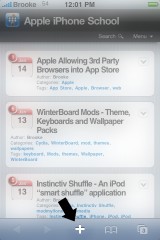
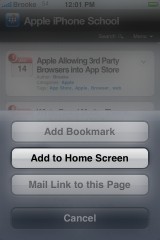
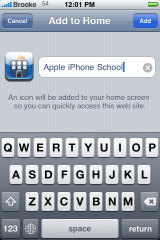
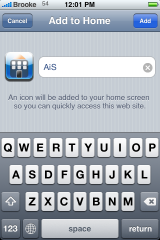
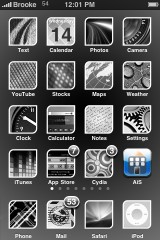
QuickTip – When in Safari, you can add any web page to your SpringBoard by selecting the + icon on the lower menu bar and then selecting the Add to Home Screen option. This will bring up a page displaying the web pages icon and title. You are able to change the title by taping in the title box and typing in a new title. Once you are finished, you can then select Add in the upper right corner. The web page will automatically be added to the SpringBoard with the rest of your icons. This makes for a quick and easy way to access the websites you visit most often. Screenshots below.
Thanks to everyone who has sent in a QuickTip…I have archived them and will definitely use them in the future! If you have a QuickTip you would like to submit you can email it to QuickTip@appleiphoneschool.com.
Screenshots:

 Loading...


 Loading ...
I didn’t know that this was a new feature.
its been on since 2.0
correction, 1.1.3 =}
why do you have this up here this isnt new nor a trick….
Guys…see THIS article. These are just QuickTips that people may not already know or that they may have forgotten about. You have to remember that not everyone who has an iPhone or iPod Touch knows every aspect of them. Eventually all the QuickTips will be put into a database…we will then have a widget on the side of the site that pulls from the database to display random QuickTips.
The widget idea is a good one.
Good thing to add to this is you can save passwords this way for quick access to secure websites BUT the password will be clearly visible in the url so don’t use for sensitive sites. I use this for quick access to devices on my LAN.
Format: http://username:password@www.webaddress.com or http://username:password@192.168.1.1
sweet thanks again
glad you are doing this to help newer users. Now i have a place i can send my friends to to find out new things about their phones. Thx guys!
It’s called Web Clips .. hardly new. What would be nice is the ability to use them in catagories. I’m not able to create a folder and add them .. so I have one sb page with all these ugly square icons.. iPhone school is first .. at least it has a nice picture on the icon..
I feel sorry for the people who feel the need to complain about these QuickTips just because they already know about the features. Myself, I just got my iPhone last week, and I find this information valuable. On behalf of myself and the other newbies out there, I say, “Thank you for sharing.”
Hey – Thanks for the QuickTips!
But 1 Question. if i make a WebApp – is there a way i could setup a link on my page that will automatic create a Symbol on the users Springboard if he follows it ?!
Would be nice if you have a solution for that …
Here’s an easy guide: http://vjarmy.com/archives/2008/01/howto_iphone_webclip_icons.php