 |
Available In: Cydia |  |
Price: Free |
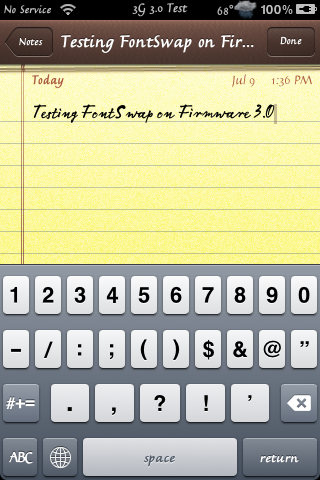
 Those of you who use FontSwap, an application that allows you to change the fonts on your iPhone or iPod Touch, probably know that the app has not been updated to work on the 3.0 firmware. When I tested FontSwap on an iPhone running 3.0, it did not crash the device (as some claim it has done) however, the fonts did not change. I did some searching and found a way to make it work manually. This method requires ssh and overwriting of files so, make sure you are comfortable with both those things before you begin. The instructions below were originally written by dazzastark (via modmyi)…I did make a few modifications to them. There is a link to the original post below the instructions.
Instructions:
1. Install FontSwap in Cydia via the BigBoss source. When you install FontSwap, it will also install the FontSwap Starter app.
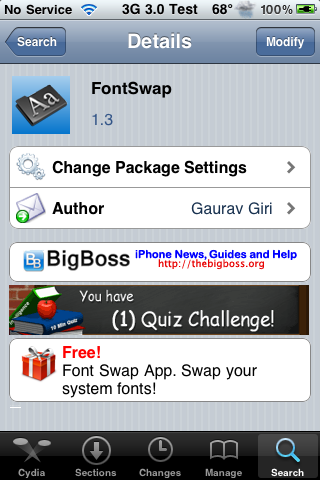
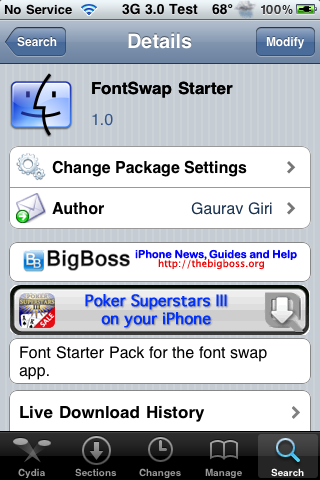
NOTE: DO NOT ACTUALLY RUN FONTSWAP (I didn’t have any issues when I ran it…some people however, are experiencing issues)
2. Open the FontSwap application.
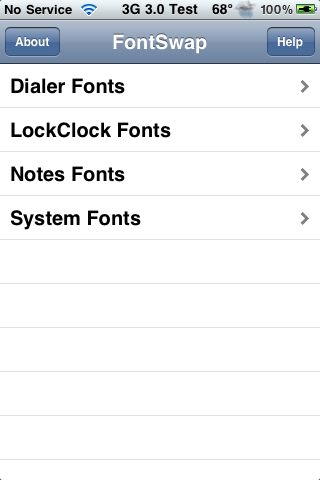
3. Decide which fonts you wish to use (but do not actually choose any fonts in the app). Ex) LockClock Fonts – Zapfino, Notes Fonts – Calibri
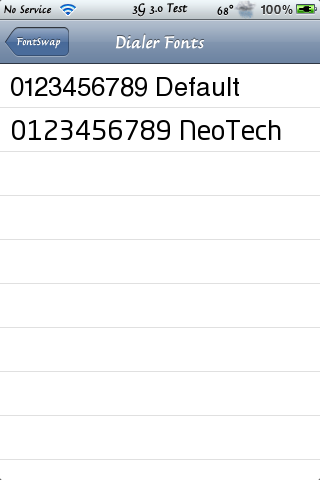
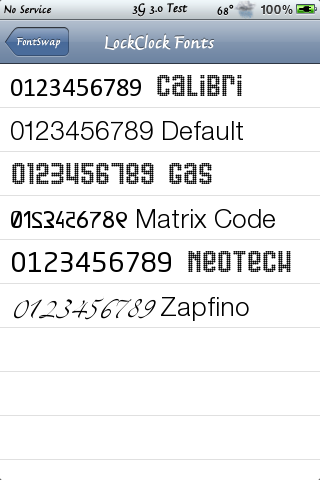
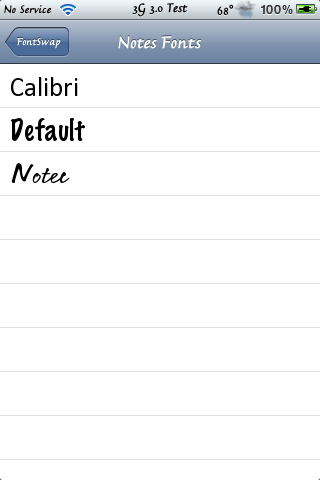
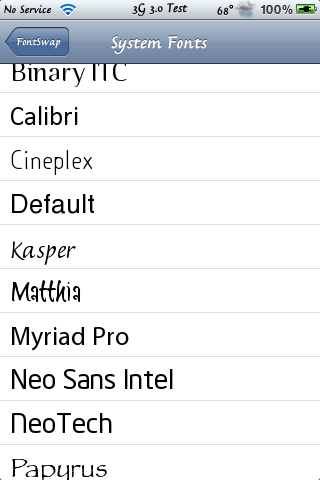
4. Remember the names of the fonts you would like.
5. SSH into your phone. For more info on SSH…please see THESE instructions.
6. Navigate to /private/var/mobile/Library/FontSwap/Packages. Here you will find the folders; Dialer Fonts, LockClock Fonts, Notes Fonts, System Fonts. Inside each of these folders will be the font folders.
7. Open the folder of the font you would like to use. Inside the font’s folder will be a .ttf font file. Copy the file to your computer. Repeat this step for all the fonts you would like to replace.
8. Navigate to /System/Library/Fonts/Cache on your device. This is where all the stock fonts are kept.
9. Backup the stock font you are replacing by either copying it to your computer or renaming it. You will know which font because it is the same name as the font file you copied in step 7. Ex) LockClock.ttf
10. Drag the font(s) that you saved on your computer in step 7 into this directory (/System/Library/Fonts/Cache).
11. Respring and you’re done!
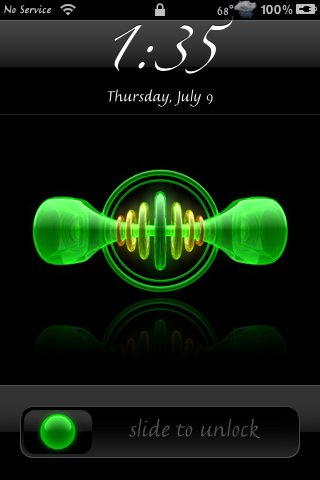
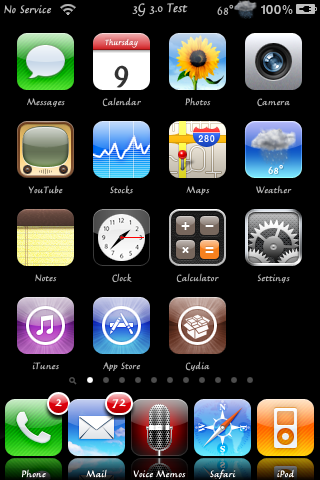
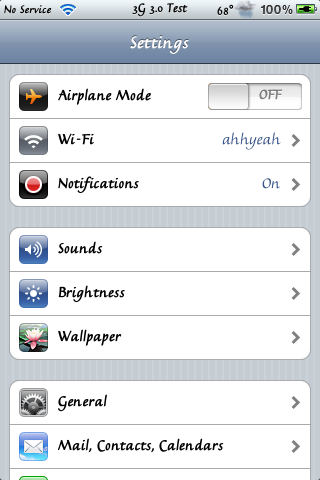
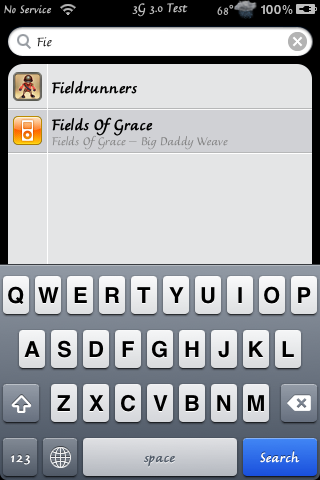
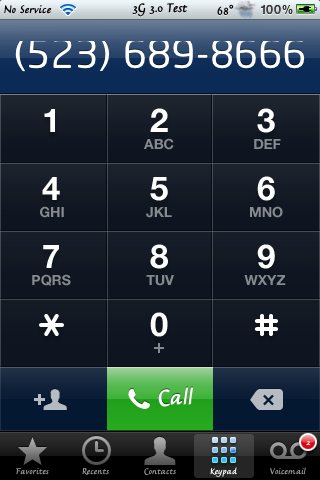
I tested this method and I was able to change my fonts (see screenshots below) and put them back to the stock fonts with no problem. You can see the original thread for the instructions HERE. Warning: The original thread does contain some inappropriate images.

 Loading...


 Loading ...
you know the fonts arent correctly ported for 3.0?
I did this weeks ago when I upgraded, being that it is the way I’ve changed my font for a while now. I got the calibri font from fontswap back on 1.1.4 and it works fine on my 3.0
why didn’t I think of this before! basically the same method I used in the 1.1.4 days to theme SMS bubbles
also I have a request
could u guys please!! do a review of the push notications fix for hacktivated jailbroke 3g’s
I know how to do it and u have to replace some files but a few people claim to be gettin random push notifications from someone elses account
I don’t want to be stuck with that
thanks!
Worked perfectly for me.
Thank you
It worked but when I went back to the default fonts it seems they are a smaller font as the numbers within the badges are not centered and also the system fonts are not centered withing Settings and the lockscreen sliders etc.
Can someone send me a copy of the system fonts default for a working iPhone? These are located under /System/Library/Fonts/Cache (Helvetica.ttf & HelveticaBold.ttf)
Not the ones from within the FrontSwap app as I think they are the incorrect font size.
works great under OS3.0 and 3G 16GB
Halo. Can I change font size??? thank you for answer
Works Great on my 3GS/32GB
THANKS BROOKE!!!!
As you can see in the pictures, the fonts are all off by several pixels (shifted upwards). Even the “Default” font included with FontSwap is like that. The only way to have everything back to normal is by copying the backed up fonts into the phone.
i’ve download the fontswap but it didnt appear on my screen, what is actually hapen? is it working on iphone firmware 3.1?
sir i used font swap to change my system fonts but the phone entered into spinning wheel of death with ur help i manually copied the fonts from the font swap app/restore to sytem/fonts/cache and bling my iphone started thanks a ton for ur help!!!!!!!