It’s time for anther QuickTip! It has been a while since I have wrote a QuickTip (a very simple tip about the iPhone or iPod Touch) and I thought I better get back to it. I was actually reminded of this quicktip while we were on vacation last week.
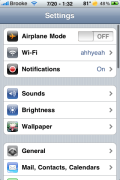
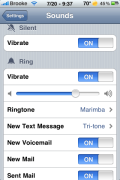
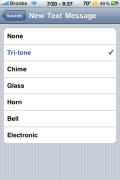
QuickTip: To change the sound your iPhone makes when receiving a new text message, you can go into the stock Settings application then the Sounds option and then the New Text Message option. Here you will see seven options in which you can choose from; None, Tri-tone, Chime, Glass, Horn, Bell and Electronic (all iPhones come stock with the Tri-tone sound enabled). You can tap on the name of a sound to get a quick demo of it. Once you select a sound, it will make that sound every time you receive a new text message.
I was reminded of how helpful it can be to change your SMS sound while on vacation last week. Doug and I (and the boys) went on vacation with Doug’s grandparents… we all have iPhones and whenever anyone received a text message we all went searching for our phones to see who received it. It would have been much easier if we all would have changed our SMS sounds (actually Doug did end up changing his later).
Click HERE to see all the QuickTips. Random QuickTips are also displayed on the ride side bar of AppleiPhoneSchoo.com. Remember if you would like to submit a quick tip just email QuickTip@appleiphoneschool.com.

 Loading...


 Loading ...
I like the Coca Cola SMS theme that was added to the ModMyI source. Its pretty cool :)
What about making it a custom sound, in the same way that you can with ringtones? Know of a way to do this without jailbreaking?
check out this video to make custom sms sounds.
http://www.youtube.com/watch?v=7aPqinD-Gek
he also has alot of other great tutorials
Nope, has to be jailbroken in order to ssh to the root/system/library/audio/uisounds location there you have to replace the sms-recieved.caf files.
Here is a detailed tutorail…..www.youtube.com/watch?v=Uei4WMBTVH8
The best way to add custom sounds is through WinterBoard. That way you mess with the original sound files.
WOW just what I was looking for. Came here by searching
for Buy Instagram Photo Likes
I read this post completely concerning the resemblance
of newest and previous technologies, it’s amazing article.